Showing posts with label Jawbone Up App. Show all posts

How To Post or Take Photo Using Jawbone Up App

Being a Social Network, if you can't post any photos, there will not be any fun at all. This app is all about having fun while keeping fit.

You may be wondering, or may have notice that there are photos posted by other users, yet there aren't any options for you to do it. So how do you take or post photos to your Jawbone Up App for your teammates to see?


There are many methods to do it. I'll show you the Jawbone in-app method.

How To Take or Post Photos

First of all, you have to go to the Home Screen. From there, you can select the "Food Symbol" on the right hand side.


Once you tapped on that be able to select the food you've eaten. This symbol is for you to log the food you eat. You just have to tap on the "Camera" icon on the right to do it.


Inside, you'll be able to either select photos from your photo album, or take photo at that spot. That's it! It's easy!


As much as I like Jawbone Up App, I hope the developers can make it easier for us to take photos and share it. The current process takes too many steps. If we can reduce to 1 step just like Facebook, wouldn't it be better?

So what about you? Do you enjoy posting photos? Let me know in the comments below.

Jawbone Up Log Sleep

Many people tend to forget to change their mode from day to night before they sleep, and unable to track their Sleep Activity. But don't worry, you'll be able to enter your Sleep Activity manually.

Accessing To Log Sleep Menu

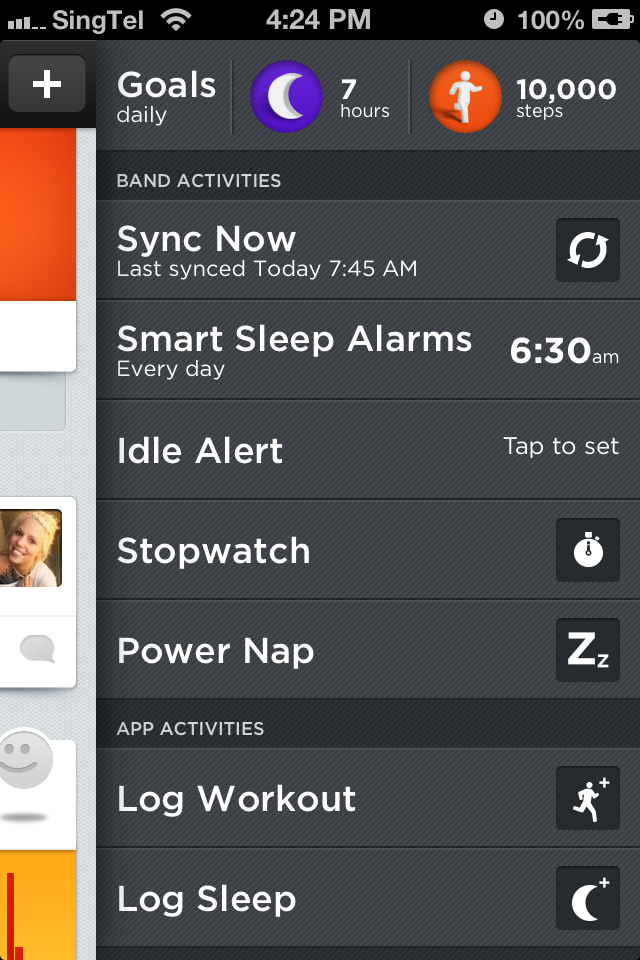
Go to the Right Hand side Menu, and tap on Log Sleep.


Once in the Log Sleep Screen, you can Add your Sleep manually.


Just select In Bed At .... and Awake At .... and Save. That's it! You've manually add your sleep. Do remember to change the mode tonight :)

Jawbone Up Log Workout

Many people thought Jawbone Up Fitness Band can only be used for walking or jogging, which involve moving your hands to get your steps recorded. Well, they are only partially right. Jawbone Up App is able to log more activities than you can imagine!

Log Workout

When you access to the Right Hand side Menu, you'll be able to see under App Activities - Log Workout. Just tap on that to enter.


Once inside Log Workout, you'll see the following screen:


This is where you can log you activities. The bad point is that you have to do it manually. But nevertheless, it's still a great way to track your personal activity.

You are able to choose the Activity type you are involved, ranging from:
  • Walk
  • Weights
  • Run
  • Cross Train
  • Hike
  • Cardio
  • Bike
  • Yoga
  • Stationary
  • Pilates
  • Elliptical
  • Basketball
  • Video Games
  • Tennis
  • Dance
  • Soccer
  • Ski and
  • Other
With so many different types of activities, you are sure to find one that suit you. If not, simply select Other.

After that, just log in the Effort Level. It can range from:
  • Easy
  • Moderate
  • In The Zone
  • Difficult
  • Gut Buster!
You can select the Effort level you are in by sliding your finger up/down the meter clock. 

Next, enter your Start Time, follow by Duration. That's it, you've manually log down your activity! It's a great way to track your exercise routine. Your team mates will be able to view your progress and cheer for you!

There are other easier ways to track your activities, by using 3rd party apps, which I'll talk about more in the future post. So do you track your activities? How do you go about doing it? Care to share in the comments below?

Jawbone Up Idle Alert

Another good feature Jawbone Up has is the Idle Alert. Since it's a fitness band, it has to alert us to start moving when we are idling, or not moving.

You can access the Idle Alert page from Jawbone Up App. At Home screen, just swipe left to access to the Right Hand Menu. From there, simply tap Idle Alert to access the settings.


Set Idle Alert


Once you're in the Idle Alert page, you'll be able to enable/disable the alert. You can set when you want your Up Band to vibrate when you are idling, ranging from 15 min to 2 hours.

Next, set your Start and End time. Let's say you are working in an office at work, you can set 8am to 5pm. This Idle Alert will just vibrate during these hours. Once it alerts you, just stand up and do some stretching before going back to work.

It all depend on individual. Just set your idle alert to suit your lifestyle.

So what do you do when your idle alert vibrates? I'll like to know. You can share in the comments below. See you Up!

Jawbone Up Smart Sleep Alarms

One of the best features of this Jawbone Up Wristband I personally like is the Smart Sleep Alarms. It works like any other alarms. However, instead of ringing, it'll vibrate on your wrist. I'm able to wake up without waking up my wife now.

You are able to set and save up to 4 alarms, and make sure you fully make sure of that. For me, I'll usually set the time to sleep (1130pm) and time to wake up (0630am). This will "force" me to meet my target goal of 7 hours Sleep.


I know some of my friends use Jawbone Up Smart Alarm as notification, notifying them the period of the day. They will set the 4 alarms as such:
  • 8am
  • 12pm
  • 3pm
  • 6pm
Therefore, at different periods of the day, even without wearing a watch, they'll be able to know what time is it. Convenient huh!

Smart Sleep Window

This is one special feature that you'll only get with Jawbone Up Wristband. When you set your alarm, let's say "6:30am", you'll be able to set the smart sleep window, from 0-30min. So how does it work?

During this window period, let's say I've set to 30 min. If I'm in the state of light sleep, Up Band will vibrate and wake me up, preventing me from falling into deep sleep. The reason is simple - if I'm in deep sleep and the band vibrates, I'll tend to feel more tired and restless for the rest of the day. So rather than allowing myself to enter Deep Sleep State, I can rather choose to wake up earlier.

You can set this Smart Sleep Window to suit your personal needs. As for me, I'll prefer not to set it since I already have my 7 hours of sleep, which is more than enough. Like I've said, it all depend on individuals.

Repeat

You can set your alarms to vibrate on the days you want. If you want longer rest during the weekends, you can just turn off the alarms on Sat and Sun. For me, I choose to wake up at 0630am everyday. It'll be easier for me to adapt to my own routine.

How To Set Alarms

So how can you set your alarms? First of all, you have to go to Home from your Jawbone Up App. Swipe left to access the Right Hand Menu.


You can tap on the Smart Sleep Alarms to access to it.

So are you using your Smart Alarms? How do you set your time? You can share your tips in the comments below.


How To Change Jawbone Up Goals

Jawbone Up is a fitness band. When we talk about fitness, we're talking about keeping fit and healthy. One thing we cannot neglect is - goal setting.

Researches have confirmed that people who set goals before a task more much more likely to achieve than people who don't. Goal setting is thus very important, not only to fitness, but to our everyday lives.

So how do you set your goals for your Jawbone Up Fitness Band?

Jawbone Up Band Goals

There are basically 2 goals for you to meet daily:
  • Sleep Goal
  • Move goal
Sleep Goal tracks the number of hours you sleep daily.
Move goal tracks the number of steps you move daily. Pretty straight forward.

By default, your Band's goals are set to:
  • Sleep - 8 hours
  • Move - 10,000 steps
You can change it to suit your personal goals.

How To Change Your Goals for Jawbone Up Band


First of all, go to Home from your Up App. You can either click on the + icon on Top Right Hand Corner, or simply just swipe to left to view your Goals.


Just tap on Goals and you'll be able to change to your personal goals.


Slide the slider to change your Sleep or Move goals. For me, I've set to 7 hours of sleep, and 10,000 steps daily. Remember to Save after that.

Your goals are set! Now it's your responsibility to hit your daily goals. Are you able to hit them every day? Let me know in the comments below.

Jawbone Up App - Help

Jawbone Team really have their customers in mind. They try to include everything possible within their app. Their Help is simple, straight forward and detail. You can find the most common troubleshooting tips right here.

Jawbone Up App - Help


The Up App Help gives us 5 tips:
  • Know Your Band
  • Restore Help Windows
  • Band Won't Sync
  • Soft Reset
  • About
Know Your Band


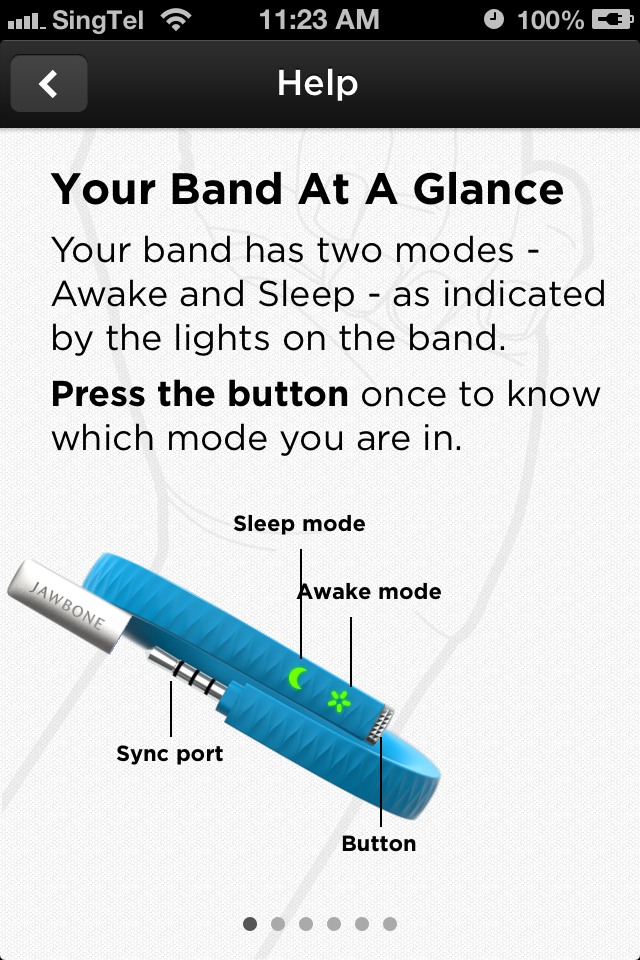
This is an introduction to your band, and what can you do with it. It'll teach you the functions of different modes and how to activate them. Very useful for beginners.

Restore Help Windows


This is an orientation of the Up App, how to navigate the functions from the App. It just show you some of the most commonly used functions, but never really go into detail. This blog is still the best for guiding you through everything you want to know about your Up Band :)

Band Won't Sync


This is the first troubleshooting tip. If your band won't sync, you can follow the steps in it. I'll write a more detail troubleshooting guide at later post.

Soft Reset


Sometimes your Up Band may hang, or vibrate non stop. Just do a soft reset will do. This Help guide will walk you though how to Soft Reset your Up Band.

About


Lastly, it's the About page. It'll have your App and Up Band information, such as Version and Band Serial Number. I've masked mine as all bands have a unique, private S/N. Below includes some additional information about Jawbone Up Company.

So do you encounter any Help that you need? Just write in the comments below and I'll try to help if possible. Thanks!

Calibrating Your Jawbone Up Fitness Band

Jawbone Up uses the best pedometer which can track your activities and movement, giving you accurate information and data. The algorithm that is used to calculate the steps and sleep are very precise as well.

However, if you feel that the data is not accurate and you wish you further enhance the accuracy, you can calibrate your Jawbone Up fitness band yourself!

How to Calibrate your Jawbone Up Fitness Band

First of all, you you have to have at least an activity tracked by your fitness band. Only activities being tracked and saved can be use to calibrate the band accurately.

If you do not have any saved activities, you can create one right away. I suggest you choose the Walk Activity. This will allow you to choose the distance you want to walk and you can do it leisurely. Run Activity is another good choice, but for me, I'll prefer Walk. It's stressless and I'm able to do it easily.

The minimum distance you have to tracked is at least 0.1 miles (0.16km). The greater the distance, the more accurate the data will be. However, I do not suggest you move more than 3 miles as the distance covered is way too much. The ideal distance will be 0.25 miles (0.4km). That's 1 round in standard track and field distance.

You can tag your activity by timing your activity. I've mentioned how you can do it in previous post, but I'll explain it again here.

How To Time An Activity Using Jawbone Up Band


Press the button twice and hold on to the second press. The band will vibrate and green light will flash three times. The timer starts ticking.

To stop tracking your activity, just press and hold the button until the green LED sun glows. It'll stop the timer. You have a successful activity.

Right now, all you need to do is to sync your band to your smartphone. From there, go back to Settings, Calibrate Your Band. Tap on Start Calibration and select your recorded activity.

Adjust the distance accordingly and re-sync your band. That's it! It'll calibrate itself!

So how often do you calibrate your fitness band? Let me know in the comments below ok?

Jawbone Up App - Settings

You are able to personalize your Up App through Settings. When you first sync your Up Fitness Band, you must key in your personal particulars in order for the Up App to send you personalized advises. It's a way to track your fitness as well.

Jawbone Up App - Settings


Under the Settings, you'll be able to see several options. Let's go in one by one.

User Settings


This screen is where you can key in your personal particular. It's the same screen where you have to enter when you first sync your band. Nothing hard to enter from here.

Privacy & Sharing


This page allows you to decide if you want to share your information. As you can see from the photo above, you can toggle On and Off for 4 main information:
  • Share Sleep
  • Share Steps and Workouts
  • Share Food and Drink
  • Share Mood
If you are not comfortable releasing too many information and details about yourself, just turn it off here. As for me, I'm very open to the world. Nothing special to hide. You can ever see I've install a Partner Apps - IFTTT, which I can choose to share as well.

Band Calibration

You can also calibration your band to make it more accurate through this page. At times if you feel that your fitness band is not giving you the correct data, perhaps a simple calibration will do the work. I'll talk about how to calibrate your band in the next post.

Erase Band Data

Quite straight forward. This will erase all information store on your band, and you can start all over again. If you purchase a used Jawbone Up Band, it's better for your to erase all information and start fresh. You definitely do not want to track somebody's data.

It's the same if you decide to sell away your Fitness band. Better erase all your particulars before transferring to the next person.

Sign Out

This is to sign out the app. And after signing out, you'll have to login again to retrieve your data once again. You do not have to sign out unless you are using a shared smartphone.

So do you find the settings page useful? Let me know in the comments below.

Jawbone Up App - Notifications

Right now, we are living in a society of very fast pace. Everyday, tons of messages flood us, leaving us with almost no time for ourselves.

Social networks are fighting for our attention and with the constant whatsapp messages coming in, we'll miss lots of messages and activities updates from our Jawbone Up teammates. Luckily, Up App also has their Notification Center. We'll be able to see any new updates from here.

Jawbone Up App - Notifications


You can see from the above photo, every new updates will be updated under Notifications screen. You can either enable or disable sounds in your settings. As for me, I disable sound alert, leaving badges and lock screen enabled.

Every once a while, I'll just check if there's any new updates for me. In this way, I'm able to keep up with my teammates, knowing what's happening to them and send them regular encouragements.

If you have too many notifications, you'll be able to delete them. Just select top right hand box and you'll be able to delete any notification you want.

So what about you? Do you find this notification screen useful? Let me know in the comments below ok?

Jawbone Up App - App Gallery

If you think Jawbone fitness band can only sync with Jawbone Up App, think again. There are many third party apps which you can use to sync your Up fitness band as well. Excited?

App Gallery


I love my Up Band, and partly it's because there are so many other choices I can play around with. Jawbone Up did a good job by grouping all compatible apps in their App Gallery. You can see all available apps there.

Apps available are:
  • MyFitnessPal
  • IFTTT
  • RunKeeper
  • MapMyFitness
  • GymPact
  • Wello
  • Tictrac
  • Sleepio
  • Withings
  • Lose It!
  • CarePass from Aetna
  • Notch
Right now, I've install IFTTT and simply love this app too. I'm able to send my tweets, photos and news to Up App automatically. It works like Facebook and I'm able to read my news here. I'll explain more in future posts.

So what about you? Which third party apps have you installed? Which app you like the best? Care to share with me in the comments below? See you Up!

Jawbone Up App - Team

I always believe that having a team behind you will always get things done faster and better. Exercising and keeping fit can be one of the hardest and toughest thing to achieve in the world, and luckily, Jawbone Up App allows you to add friends as your teammates to cheer each other up!

Jawbone up App - Team

Under this window, you'll be able to see your whole list of friends, or teammates. To me, it's better to have more friends, and I'm looking for teammates in my home country to workout with me. So if you are living in Singapore, just add me as your friend ok?


As you can see, I already start building my own team. As I've mentioned previously, I find this Up App better than Facebook, because all the people inside are concerned about fitness and health. We have one common goal - to keep fit.

You can view your teammate's performance when you select them. You'll be able to see everything they've posted on their wall, such as Active and Sleep data.


I find the people using Up much more friendlier than normal social networking sites. They tend to encourage each other by dropping some words of encouragement. Do so for your teammates once a while and they will do the same thing for you.

So if you are new to Jawbone Up and you do not have any friends yet, don't worry, I'll show you how to get some friends right away.

Up App Adding Friends

There are basically 2 ways to add new friends to your team. First of all, you can link your Facebook, contacts and Twitter accounts to this app. All your friends who are using this Up App will be added to your list.


From here, you may add a few friends. If there aren't anyone, just do a search for any common names such as "Jenny", "Jackson", "John", etc .... and you can add them through there. Worst come to worst, just do a search for "Vanson" and you can add me.

Next to add more friends, you just have to go to your first friend and view his profile. Under his profile, you'll be able to see the number of friends he has.


One of my friends Ada has 108 teammates. I can go through her list and view all her friends' particulars.


From here, I can add whoever I want. Just select any of the friends and add to team.


As you can see, I've decided to add Austin Huang as my friend. Just + Add To Team and wait for him to approve. That's easy!

You can repeat the process till you've added the whole world as friends. I'm not sure if you have any limits, but I prefer to add those active people. Inactive people may not login, or view any accounts anymore. There's no point adding them.

So what about you? How many friends do you have? Care to share with me in the comments below?

Jawbone Up App - Trends

Jawbone Up App - Trends

Up App Trends is another good platform to view your overall performance. It's more for performance tracking personnel like me. If you've read my personal blog, you'll know that I track basically everything.

As for the trends, you can monitor your performance based on 3 different periods of time, either
  • Daily,
  • Weekly, or
  • Monthly

Since I've just purchased my personal Up Fitness Band, I only have 3 weeks of data. Nevertheless, it's still interesting to see what's happening in your life based on the trend. As you could see from my Daily Trends, the most recent Active Steps I've took was far less than usual. It was because I was lazying at home during the weekends, and therefore there were significant drop in steps I've walked.

You can view many types of data, and it'll automatically plot into the bar chart as shown. The types of data are:
  • Total sleep
  • Deep sleep
  • Light sleep
  • Awake time
  • Steps
  • Active time
  • Workout time
  • Distance
  • Calories burned
  • Calories consumed
  • Carbs
  • Cholesterol
  • Fiber
  • Protein
  • Saturated fat
  • Sodium
  • Sugar
  • Unsaturated fat
  • Weight

 Monitoring your health and fitness is crucial, not only for sportsperson, but for anyone who thinks they are getting weaker and older. Try to make meaningful judgement and adjust your lifestyle for the better. I'm always trying to improve my health by sleeping well, eating good and regular exercise.

So what about you? How do you track your health and fitness? Care to share with me in the comments below?


Jawbone Up App - Lifeline

Jawbone Up App - Lifeline

Up App Lifeline is rather interesting. It compiles all your data, both Active and Sleep and plot it into a long chart, activities vs time.


You can see your performance's summary from here, and trace back all the way till the very first day you've joined this Up Community.

This summary allows me to know what I'm doing at that period of the day. For example, I knew that I woke up around 630am today. From about 637am to 8am, I'm not doing anything. Actually I'm doing some work on my computer. From 8am onwards, I walked to a nearby cafe for breakfast. This summary shows clearly what I'm doing 24/7. Pretty impressive huh.

As much as I like this Lifeline features, there are some points I hope Jawbone Up designers can take into consideration. First of all, I hope this Lifeline Page is able to rotate. I'll prefer to view this page horizontally (landscape), rather than vertically (portrait).

Next, I hope to add some comments, or balloon words at different periods to make it as a mini diary. I can log down my previous examples such as "Doing work @ Computer" and "Having breakfast at ABC Cafe" so as to remember my every move.

Even better, I can take some photos of my activities and have the photos log instead of typing. So Jawbone Up Designers and Programmers, if you happen to read this blog, please take my suggestions into considerations. Thank you!

So do you have particular requests? Just drop in the comments below. Who knows, maybe your suggestions and ideas are being implemented! See you Up!

Jawbone Up App - Profile

Jawbone Up App - Profile

At the profile page, you'll be able to see everything you've done since the first day you registered on this app. You can change your profile photo, track your progress, your friends, their progress, etc ....


You can even include 3rd parties app to have news delivered to your profile page automatically. I'll talk about it in future posts. As you can see, the handsome guy sitting on the sofa is me :) So if you don't mind, just search and add me as your teammate. You can add me in Twitter @ twitter.com/IAmVanson.

One good point about Profile Page is, if you want to find a particular post you've posted, it's better to search through the Profile Page rather than Home Page. Currently I've more than 50 teammates and it's quite hard to find some old posts. By going through Profile Page, I'll just look under my own posts, which is a huge time saver.

So how's your Profile Page doing? If you don't mind, add your name in the comments and we connect as teammates? See you Up!

Jawbone Up App - Home

Jawbone Up App is full of features. I'm going to highlight some of the features that can be found inside the app. Like I've mentioned previous, this app needs a Jawbone Up Band to work, else it'll be pretty useless. If you haven't get your personal Up band, you can get it here.

Jawbone Up App - Home

This is where you'll see most of your news. The concept is similar to Facebook, where you can scroll down to check the updates from your friends, or teammates. Your status will be posted on the wall and your friends will be able to see as well.

Right on top will be your achievements for that day. You can see your goals completions for Active and Sleep.


As you can see, I've hit 96% of my Sleep Goal, but so far, I've only walked 654 steps (lazy me!). Need to catch up later!

When you scroll down, you'll be able to see your friends' updates.


Try encouraging each other when goals are met to keep each other motivated. I like this App more than Facebook right now as I know all my friends have a common goal, that is to keep fit! We can post photos of what we eat, as well as sharing some nutritional tips.

Up Active and Sleep Status

If I want to see my Sleep and Active status, I'll be able to do it here.


Over here, you can analysis your own data. Right now, I'm more interested in achieving 50% deep sleep. So far so good. I was sleeping for 6h 45 min, and able to have about 3 hours of deep sleep. I felt fresh when I woke up, ready to maximize my day!

Up Mood Tracking

You are able to log your moods and track how your mood co-relates to your performance. Have a deep understanding how your mood swings over a period of time.


Up Food Tracking

ndYou may find that there are plenty of apps out there you can use to track your daily meals, a Jawbone Up App is just one of them. But I'll like to track everything about me in just 1 app. I do not like to switch between apps, especially when I'm serious about my health. Unless other 3rd party Apps are able to do more, I'll stick to Up App for food tracking.


This app allows you to scan, type or snap a photo of the food you are consuming and automatically calculate the calories intake. Though I can't find some food there, I'm always able to pull the nearest type of food.

Therefore right now, besides enjoying my meal, I'm able to snap a photo, enter the food I'm eating and have the calories intake automatically updated inside my Up App.

Up Daily Motivating Tips

Last but not least, we tend to feel demotivated at times. Up App will send up daily motivating tips to keep us going. Although it can be as simple as just 3-4 sentences, it'll boost up my day.


I'll check the tips daily to see where can I improve to achieve better health. The tips are customized based on my data, which I find them really meaningful.

So what about you? Do you like Jawbone Up App? Any special features you like personally? Care to share with me in the comments below? See you Up!

Jawbone Up Synchronization

The next best thing beside Jawbone Up Fitness Band is none other than ... its app. I can't say how much I like this app. It's nicely designed, clean with all the information we want, all in this colorful interface.

Jawbone Up App is compatible for both iOS and Android devices. You can download the app for free in Apple App Store, as well as Google Play.


However, you need to have a Jawbone Up Band to get this app working, else basically this app doesn't serve much function at all.

Sync Up Fitness Band To Up App

Once you have your personal Up Fitness Band and Up App, it's time to sync your data. You will be wearing your Up Band as long as possible daily, and it's recommended to sync your data twice a day. All your data will be transferred from your Up Band to your smartphone and saved it there.


To sync your Up Band to your smartphone, you just have to plug the Up Band into the earphone hole. I find it better than using bluetooth as I personally have bad experiences with bluetooth pairings with other devices such as headphones and earpiece. I spent more time trying to pair the bluetooth devices than the actual syncing time, and luckily, Up Band uses physical connection.

The syncing is fast and clean. You'll be able to see the data transfer percentage completion bar, and it'll show 100% completion once done. Not only that, as I've mentioned previously, you'll be able to see the battery life remaining and rough estimation of days you can go without charging.


Once your synchronization is completed, you can unplug your Up Band. Your data has successfully transferred over to your Up App, which stored inside your smartphone.